
Kruti Dev Keyboard Layout — Hindi Typing Chart & Free PDF
If you type Hindi in Kruti Dev 010, you press ordinary English keys and the font draws Hindi letters. This guide shows which key gives which character on the Kruti Dev keyboard, with Normal and Shift keys, matras and half letters.
Kruti Dev 010 Keyboard Layout — Normal and Shift Keys
Interactive Remington QWERTY keyboard chart
Kruti Dev 010 is a font, not a keyboard. You type on a normal QWERTY keyboard, and the font gives the stored characters Hindi shapes, following the arrangement of a Remington typewriter. The key rows on this page come from the character table our converter uses to read Kruti Dev text.
That table tells us what each stored character means; it is not the result of typing tests in Word, which are still pending. With that caveat, the home row keys a, s, d, f, g, h, j, k, l and ; correspond to ं े क ि ह ी र ा स य. The Shift layer adds half letters such as D for क् and extra letters such as N for छ.
Two stored characters depend on their neighbours. In the converter's rules, f is the chhoti i matra (छोटी इ की मात्रा), and it comes before the consonant it belongs to in the stored text. Z is the reph mark (रेफ), and it comes after the character it sits above.
Click or tap any key above to see what it types. Use the Shift button to switch layers, or press Shift on your own keyboard.
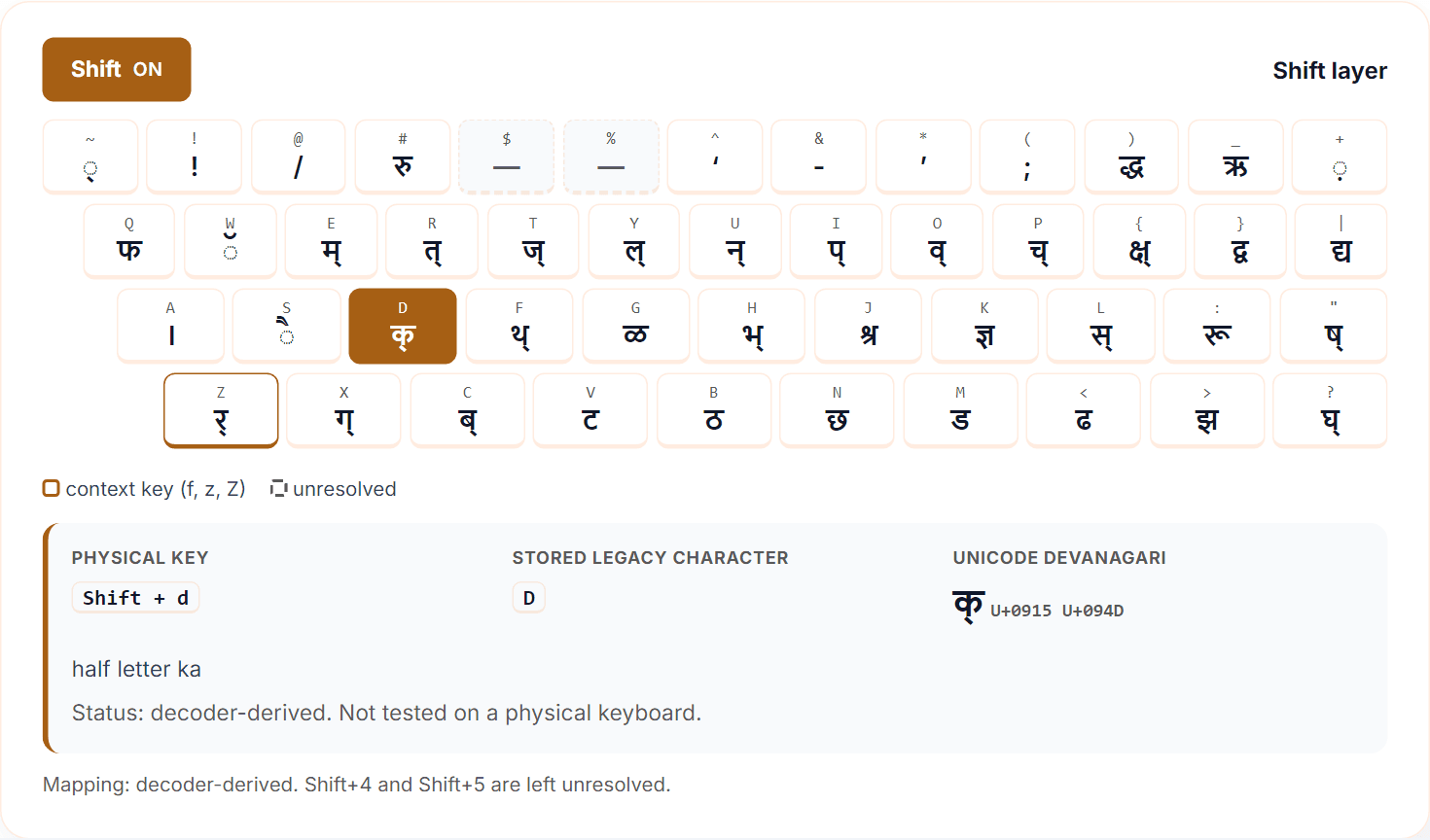
How to read normal keys, Shift keys and Hindi labels
Every key on this page can be described in four ways, and mixing them up causes confusion. The physical key is the one you press, such as D. The stored legacy character is what the file contains. Without the Kruti Dev font, it may appear as a Latin letter or symbol.
With the font applied, it appears as a Hindi-looking glyph. The Unicode converter output is genuine Devanagari text, which you get only after conversion. Matras are shown on a dotted circle, like ◌ा, so you can see where they sit.
In the tables below, a key and its stored character are assumed to be the same; the physical keyboard test is what will confirm that. Alt-code numbers are not keys, so they are kept apart in the Alt-code section.
Download the Kruti Dev Keyboard Chart PDF
Print the full A4 Hindi keyboard chart
Download the PDF, open it and print it on A4. Keep the printed sheet next to your keyboard while you work, and use it as a quick reference.
What the downloadable chart includes
The chart shows the Normal layer and the Shift layer, with a legend, the mapping status and generation date, this page's address, and Unicode Devanagari labels set in Noto Sans Devanagari. Use the PDF as a quick reference, and come back to the tables below when you need the exact entry for one character.
Complete Kruti Dev Hindi Typing Key Chart
The tables below are decoder-derived: they show how the Kruti Dev character table in our Kruti Dev to Unicode converter reads each stored character. They are not the result of typing on a physical keyboard, and each carries a status line.
We have also left out Shift+4 and Shift+5 for now, because our table and an external reference table (LTRC) do not agree on them yet.
Search by Hindi character, by key, or by a word such as ka, matra or halant. Copy buttons are separate for the keyboard-key label, the legacy stored character, and the Unicode character.
Consonants, vowels and half-letter keys
Kruti Dev has full letters and half letters. A full letter such as क is a single key, d. Its half form क्, which can join the next letter, is Shift+D. A few letters work differently: the key H gives the half form भ्, and you follow it with k to get the full भ, as in Hkkjr for भारत.
Vowels such as आ, ओ and औ are built from key combinations, and we list only single-key outputs here until those combinations are tested.
| Row | Keys without Shift (key → output) |
|---|---|
| Top row | q ◌ु · w ◌ू · e म · r त · t ज · y ल · u न · i प · o व · p च |
| Home row | a ◌ं · s ◌े · d क · f ◌ि (context key) · g ह · h ◌ी · j र · k ◌ा · l स · ; य |
| Bottom row | z ◌्र · x ग · c ब · v अ · b इ · n द · m उ · , ए · . ण् · / ध् |
| Group | Shift keys (key → output) |
|---|---|
| Half letters | D क् · X ग् · P च् · T ज् · I प् · C ब् · H भ् · E म् · R त् · F थ् · U न् · Y ल् · O व् · L स् |
| Other Shift keys | N छ · M ड · V ट · B ठ · Q फ · G ळ · S ◌ै · W ◌ॅ · A । |
Status of both tables: decoder-derived, from the converter's Kruti Dev table. Not a physical keyboard test.
Matras, conjuncts and reph
Some keys do not simply add a letter, because their result depends on the keys around them. The chhoti i matra (छोटी इ की मात्रा) is typed before the consonant it belongs to, the reph is typed after the letter it sits above, and the rakar is added after a consonant.
Conjuncts such as ज्ञ, श्र and त्र have their own keys. Be careful with त्र and ट्र: the first is the = key, but we have not verified a typing sequence for ट्र or ड्र, so we do not list one.
| Key | Output | How it behaves |
|---|---|---|
| f | ◌ि | Typed before the consonant |
| z | ◌्र (rakar) | Typed after the consonant |
| Z (Shift + z) | reph (रेफ) | Typed after the letter it sits above |
| ~ (Shift + `) | ् (halant) | Removes the inherent vowel |
| + (Shift + =) | ़ (nukta) | Marks letters such as क़ |
| K · J · = | ज्ञ · श्र · त्र | One key each |
| { (Shift + [) | क्ष् (half) | Add k for full क्ष |
| [ · ' · " (Shift + ') | ख् · श् · ष् | Half forms |
| ? (Shift + /) | घ् | Half form |
| # · : (Shift + ;) | रु · रू | One key each |
| ) (Shift + 0) · } (Shift + ]) · | (Shift + \) | द्ध · द्व · द्य | One key each |
| < (Shift + ,) · > (Shift + .) | ढ · झ | Letter keys |
| _ (Shift + -) | ऋ | Letter |
Status: decoder-derived; not a physical keyboard test. Shift+5 is omitted pending the table difference noted above. Whole-word examples are in the typing section.
Numbers, punctuation and special symbols
In this font the number keys give the usual digits 0 to 9, not Devanagari digits (०१२३), so do not expect the top row to type Hindi numerals. A few punctuation marks sit on keys with different printed symbols, which is why a full stop or a comma can seem to "be on the wrong key". Remember too that Unicode digits and Alt codes are separate things from these keys.
| Key you press | What Kruti Dev gives |
|---|---|
| - | . (full stop) |
| ] | , (comma) |
| \ | ? |
| Shift + 2 (@) | / |
| Shift + 6 (^) | ‘ |
| Shift + 7 (&) | - |
| Shift + 8 (*) | ’ |
| Shift + 9 (() | ; |
Status: decoder-derived; not a physical keyboard test. Shift+4 is omitted pending the table difference noted above.
How to Type Hindi Using the Kruti Dev Keyboard
Set up Kruti Dev 010 in Microsoft Word
First install the font from our Kruti Dev font download page, then open Word and choose Kruti Dev 010 from the font list. Before you type a full document, press a few letters. If they appear as Hindi shapes, the font is active.
If they stay English letters, Word is still using another font, so fix that first. This page is only the key reference, not a full Word tutorial.
Start with the home row and common keys
Rest your fingers on the home row (होम रो): a s d f g h j k l ;. Then try this order. The outputs come from the converter table, so confirm them on your own setup:
- Try d, k, j, g and l, which should give क ा र ह स.
- Add the matra keys: s for ◌े, h for ◌ी and a for ◌ं.
- Try f and then d. By the converter's rules the ि is stored before क, which gives कि.
Do not rush to the Shift layer. Once the home row feels natural, the Shift keys are just the same hand positions with one extra finger.
Type difficult letters and character combinations
The strings below are converter-backed stored sequences. Each pair of Hindi word and string appears in the test script of our Mangal to Kruti Dev converter, so they show what the stored text contains. They are not typing instructions that we have verified on a physical keyboard.
| Hindi word | Stored sequence | Why it is tricky |
|---|---|---|
| भारत | Hkkjr | भ needs H and k |
| किताब | fdrkc | f comes first |
| धर्म | /keZ | Z comes after म |
| ज्ञान | Kku | K is one key |
| क्षत्रिय | {kf=; | क्ष, then ि before त्र |
How to type छोटी इ की मात्रा (ि)
In Hindi you say क first and ि after it, but in the stored Kruti Dev text the f comes first. The stored sequence for किताब is f, d, r, k, c. In क्षत्रिय the ि belongs to त्र, so f sits just before the = character and not after it.
How to type reph, rakar and half letters
For reph, the stored text puts Z after the letter it sits above: in धर्म the sequence is /k for ध, e for म, and Z at the end, which places the reph over म. The rakar is the z character, added after a consonant.
For half letters, क्ष shows the idea: { alone gives the half form, and { followed by k gives the full क्ष. Note that Shift plus a base key does not produce every glyph. If you already have Unicode text, you can convert Mangal text you already have rather than retype it.
Kruti Dev Alt Codes and Shortcut Keys
Kruti Dev Special Characters: Keyboard Shortcuts and Alt-Code Limitations
Many special signs in the converter table sit on Shift keys, such as # for रु or _ for ऋ, and the chart above lists the ones we have so far.
An Alt code is different: according to Microsoft, you hold Alt and type the number on the numeric keypad, with Num Lock on, and the number row at the top does not work.
An Alt code only enters a character by its number. In Kruti Dev text that character is just a stored letter, and the font decides how it looks.
We have not tested Alt codes on Windows with Kruti Dev 010, and the Alt-code lists we compared disagree with each other and, in at least one case, with the character table our converter uses. For that reason this page does not publish an Alt-code table. Please treat any such list with caution until it has been checked on your own setup.
What to do if your laptop has no numeric keypad
The Alt method needs a numeric keypad, so it is the wrong tool on many laptops. You do not need it for normal typing, because the Shift keys listed in the chart cover many of the special signs.
Some laptops build a keypad into the letter keys and switch it on in a way that varies by model, so check your manual; we have not tested any model.
If you need a single special character, search for it in the chart and copy it from there.
Kruti Dev vs Remington, InScript and Mangal
Font, encoding and keyboard layout explained
Three different things are often mixed up here: a font (how letters look), an encoding (how text is stored) and a keyboard layout (which key types what). Kruti Dev 010 is a legacy font whose text is stored as English-looking characters, typed on QWERTY in a Remington-style arrangement.
In Unicode, Hindi is stored as real Devanagari characters; ि, for example, is a separate vowel sign that is drawn to the left of the syllable (Unicode 15.1, chapter 12).
A similar finger position does not prove that every sign sits on the same key, so we do not claim Kruti Dev and Remington (Gail) are identical.
| Name | What it is | Key point |
|---|---|---|
| Kruti Dev 010 | Legacy font and text format | Needs the font to look like Hindi |
| Remington (Gail) | Unicode keyboard layout, as CPCT names it | Types real Devanagari |
| InScript | Unicode keyboard layout | Different key arrangement |
| Mangal | Unicode font | A font only, not a keyboard |
Which keyboard layout should you practise for your exam?
Follow your own exam notice and admit card, because requirements change by board and by year. As an example of why this matters, the CPCT FAQ we read on 18 October 2026 lists Remington (Gail) and InScript in Unicode as the available layouts, and does not mention Kruti Dev.
So do not assume that Kruti Dev practice matches that exam. We do not state requirements for any other exam here. Compare the official layout chart on your exam portal with the table above before you spend weeks on one layout.
Fix Common Kruti Dev Keyboard Problems
English letters or boxes appear instead of Hindi
If you see letters like Hkkjr instead of भारत, your text is probably Kruti Dev text shown in a font that is not Kruti Dev. This can happen when the font is not applied, is not installed on that computer, or when you paste the text into a website, form or chat that cannot use the font.
In Word, select the text and look at the font name box; other apps differ. If it does not say Kruti Dev 010, set it. If the font is missing from the list, install it from the font download page. Boxes can appear when the font in use has no glyph for a character.
Wrong matras, Shift keys or joined letters
Wrong results often come from the order of the stored characters. If ि lands on the wrong letter, the f may be after the consonant instead of before it. The reph is placed over what comes before Z, which can be a consonant together with its matra, so check what you typed just before Z.
If half letters or extra letters appear when you did not mean to use Shift, check the Shift and Caps Lock state. Caps Lock affects letter keys but not number or punctuation keys, and we have not tested how it behaves with Kruti Dev in Word.
If symbols seem to be on different keys than the chart shows, your keyboard layout setting may not be US English, and settings differ by system. For ट्र and ड्र, no verified sequence is listed yet.
Why typing and conversion give different-looking text
Typing gives you Kruti Dev text, which stays readable only with the font. A converter gives you either Unicode or Kruti Dev, depending on the direction. The output can also contain special characters that are not meant to be read as keystrokes: the converter stores प्रकाशas çdk'k, for example. So copy converter output instead of retyping it, and check conjuncts afterwards.
| What you have | What you want | Where to go |
|---|---|---|
| Kruti Dev text that looks like English letters | Readable web text | Kruti Dev to Unicode converter |
| Unicode or Mangal text | Kruti Dev text | Mangal to Kruti Dev converter |
Kruti Dev Keyboard Layout — Frequently Asked Questions
How do I download and print the PDF?
Use the download button in the PDF section, and print the chart on A4.
Which key types ि?
By the converter's rules, f is the stored character for it, and it comes before the consonant. A physical keyboard test is pending.
How do I see Shift keys and half letters?
Hold Shift while pressing the key. The Shift table above lists the half letters we have so far.
Is it the same as CPCT Remington (Gail)?
Do not assume so. CPCT lists Remington (Gail) and InScript in Unicode, while Kruti Dev 010 is a legacy font.
Can I view the chart on my phone?
The key tables are ordinary page text, so you can read them on a phone and use your browser's Find in page.
Do I need the font installed?
Yes, if you want reliable Hindi shapes in your own document. Without Kruti Dev installed, apps may show Latin letters or substitute another font, so the text can look wrong or incomplete.
Do Alt codes work without a numeric keypad?
Microsoft's method needs the numeric keypad, so the number row does not work. See the Alt-code section above.